Checklist, budget and moodboard
How do I set up my budget?
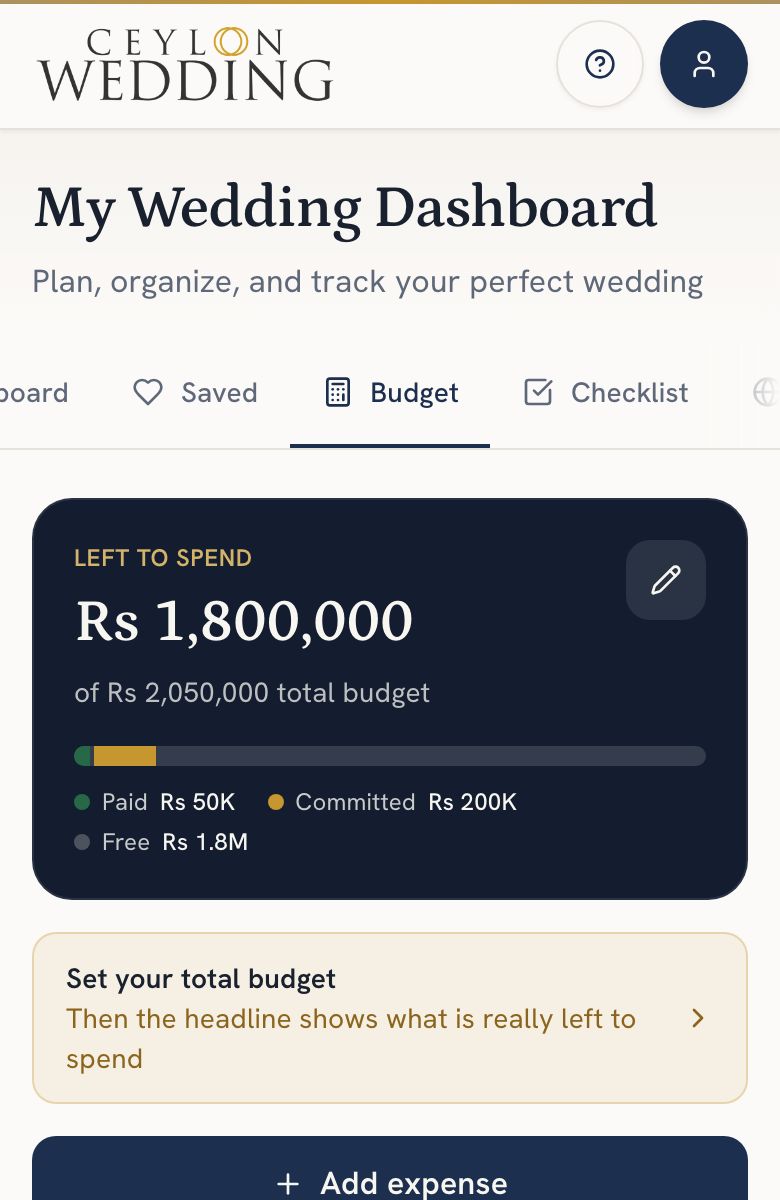
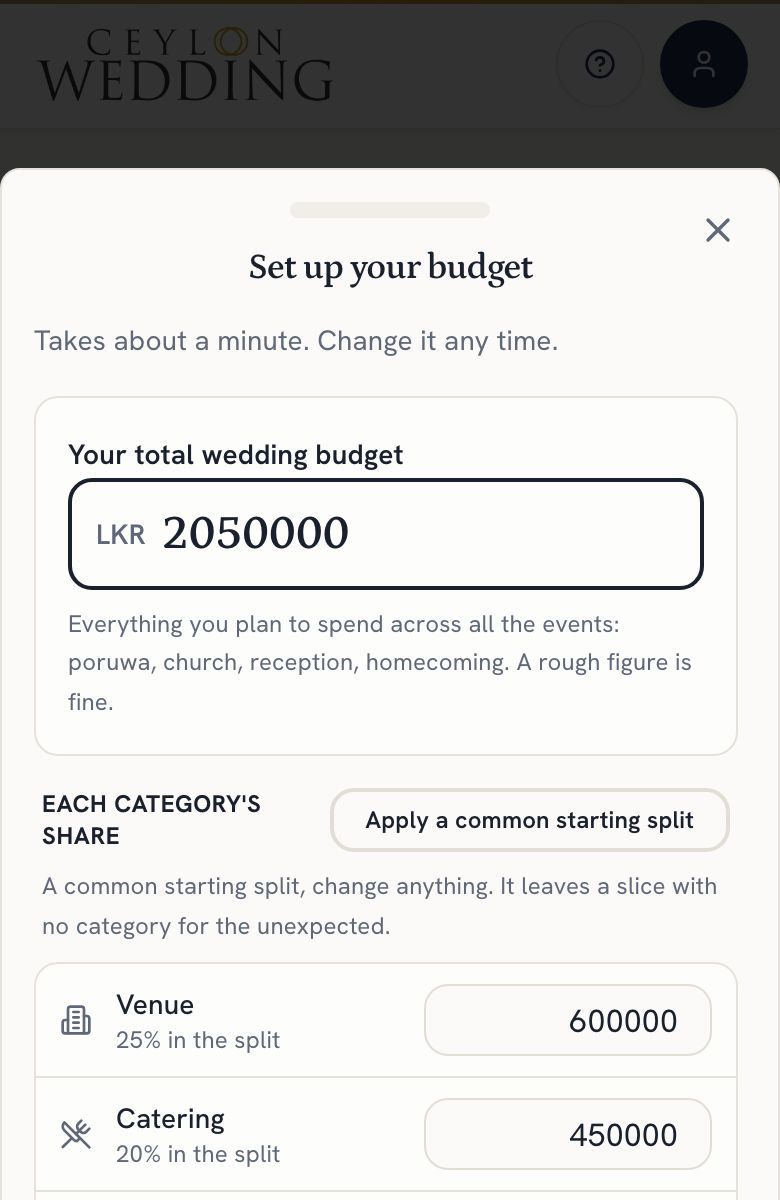
Open Budget on your dashboard, set your total, and give each category its share. A common starting split is one tap away; change anything. The tab then shows what is left to spend once everything paid and everything agreed with a vendor is taken out.
Budget starts with eight empty categories, from venue and catering to photography and decor, under a headline that shows what is left to spend. Nothing is filled in for you: set your total, then share it out.
Step by step
- Open Budget on your dashboard and tap Set your total budget, or the pencil on the headline.
- Type your total. Everything you plan to spend across all the events; a rough figure is fine.
- Tap Apply a common starting split, or type each category's share yourself. Left to allocate updates as you go. Tap Save budget.
- Tap a category card to see what it holds: paid, still to pay and free, with its vendors and expenses. Edit beside Categories changes an amount, removes a category or adds one.
What the headline means
- Paid is money that has gone out: payments and deposits to vendors, and the expenses you add.
- Committed is what you have agreed with a vendor but not yet paid.
- Left to spend is your total less both. If your categories add up to less than your total, the tab says how much is not yet allocated.
Vendors and payments
A vendor you mark Booked, or pay anything to, appears in the payments list with their quoted price, what you have paid and what is still to pay. Record each payment there, and add the instalments still due. Their money counts under the category that matches their kind of business; pick another under Budget category if it belongs elsewhere.
Money that fits no category, such as a vendor who has left the directory, shows on a Not in a category card until you choose one.